
Introduction
Jenkins is one of the most popular and powerful automation tools, widely used for integrating and deploying software projects continuously. While it’s possible to quickly start Jenkins using a simple Docker command, this setup looks like “Hello World” in any programming language: useful for begginers, but insufficient for production environments.
In this post, we go beyond the basics. The goal here is to guide you with some techniques for a (almost) robust and scalable Jenkins architecture using Docker and Docker Compose. We’ll explore fundamental concepts like machine isolation and set up an environment near real world scenario. By the end, you’ll have a solid structure ready to be adapted and expanded according to your needs.
If you’re ready to move from begginer to professional CI/CD environment, read on!
Prerequisites
Before diving into the technical details, it’s essential to ensure that some prerequisites are met:
- Linux (In my case, I use Windows as main SO, so I need to use some virtualizer like WSL, Virtualbox, VmWare, etc.)
- Docker
Key Concepts
With the prerequisites defined, we can now explore some key concepts that will guide the Jenkins setup.
Isolation
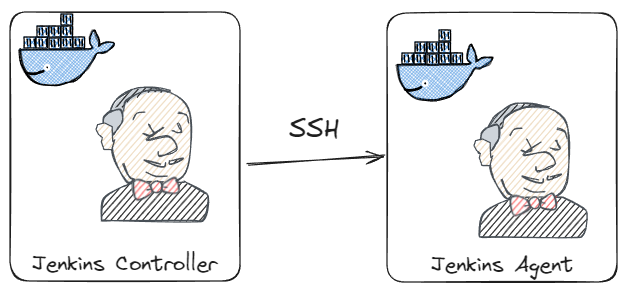
The first best practice for using Jenkins is not to run everything on the same machine. Both for security and scalability reasons, it is recommended to use at least two machines.
The first machine is what we usually call the controller. It is the main machine, primarily responsible for the interface, settings, and job execution control.
The other machines are called nodes. These machines are responsible for executing all the jobs.
Machine Configuration
Both the controller and the nodes need to be configured within an operating system.
Installing prerequisites, creating directories, and setting user permissions are some examples. Additionally, we will take this opportunity to perform some Jenkins configurations that will only take effect on startup or restart.
We will use the Jenkins images and Docker Compose for this step.
Jenkins Configuration
With Jenkins running, we need to configure the environment to work properly:
- Access credentials
- Configuration of communication between the controller and the node
These configurations will not be done manually. We will use the Configuration as Code plugin to automate this process.
Basic Structure
With the concepts understood, it’s time to start defining the basic structure of the project.
This is the basic structure. This model will be used in future posts.
.
└── demo/
    ├── casc/                             # Jenkins configuration as code
    │   └── *.yaml
    ├── plugins/
    │   └── plugins.txt                   # Plugin list
    ├── scripts/
    │   └── *.groovy                      # Jenkins initialization scripts
    ├── ssh                               # Public and private keys
    ├── docker-compose.yaml
    ├── Dockerfile
    ├── start.sh
    └── stop.sh
Dockerfile
Within this structure, the Dockerfile plays a central role. Let’s examine it in detail:
|
|
A summary of the Dockerfile content:
- lines 3 to 8: Creation of the
.sshdirectory and copying of the private key stored in the project’ssshfolder. - line 10: Copying of
Groovyscripts stored in the project’sscriptsfolder. - lines 12 and 13: Copying the plugin list and installing the plugins in the image.
- lines 15 to 17: Creation of the
JCasCplugin folder and copying the configuration files from the project’scascfolder (Configuration as Code). - line 20: Sets the environment variable
CASC_JENKINS_CONFIGto configure the default folder where Jenkins will retrieve these files. - line 21: Configures the environment variable
JAVA_OPTSto skip the installation Wizard.
docker-compose.yaml
After configuring the Dockerfile, we need to orchestrate the services with docker-compose.yaml:
|
|
There is no secret to docker-compose. The jenkins service runs the official Jenkins image, with the main ports mapped, and the ssh-agent service will be the execution node for the pipelines.
In line 19, we configure the environment variable JENKINS_AGENT_SSH_PUBKEY to inform the generated public key.
plugins.txt
Now that the services are configured, let’s define the essential plugins in the plugins.txt file:
|
|
executors.groovy
Following the recommendations at the beginning of the article, it is necessary to adjust the Jenkins executors, which we will do in the executors.groovy script:
|
|
ssh-agent.yaml
Finally, we need to configure secure communication between the controller and the nodes, using ssh-agent.yaml:
|
|
Here, we configure Jenkins using the configuration as code plugin:
- Lines 1 to 12: Creation of a Jenkins credential of type
SSH Username with private keywith the private key. - Lines 13 to 25: We create the node configuration.
Start up
With all the configurations in place, it’s time to put everything into practice and start the environment. We’ll use the start.sh script to automate the execution of docker-compose (especially useful for repeated executions):
|
|
In summary, the start.sh script:
- Executes the
stop.shscript to remove any existing environment. - Generates the ssh key for secure communication between the
jenkinsandssh-agentcontainers. - Exports the environment variable
JENKINS_AGENT_SSH_PUB. - Builds and starts the environment.
Conclusion
In this article, we explored some essential concepts for a robust Jenkins setup and then proceeded with the actual configuration.
Starting with the environment setup, we used the Dockerfile and docker-compose.yaml to define and orchestrate the environment’s services. We then configured Jenkins’ essential features, such as plugins and executors, using the plugins.txt and executors.groovy files.
Finally, we used a script (start.sh) to automate the execution of all these steps.
The final project will be available in the repository repo-link.
In future articles, we will add more steps and configurations for Jenkins. If you’re interested, stay tuned for updates.
Photo by Chilli Charlie on Unsplash